
How to Convert WhatsApp Status Video to MP3 (2026)
Extract the audio from a saved WhatsApp status video as MP3, M4A or AAC, trim it, and set it as a ringtone — on your phone, no upload.
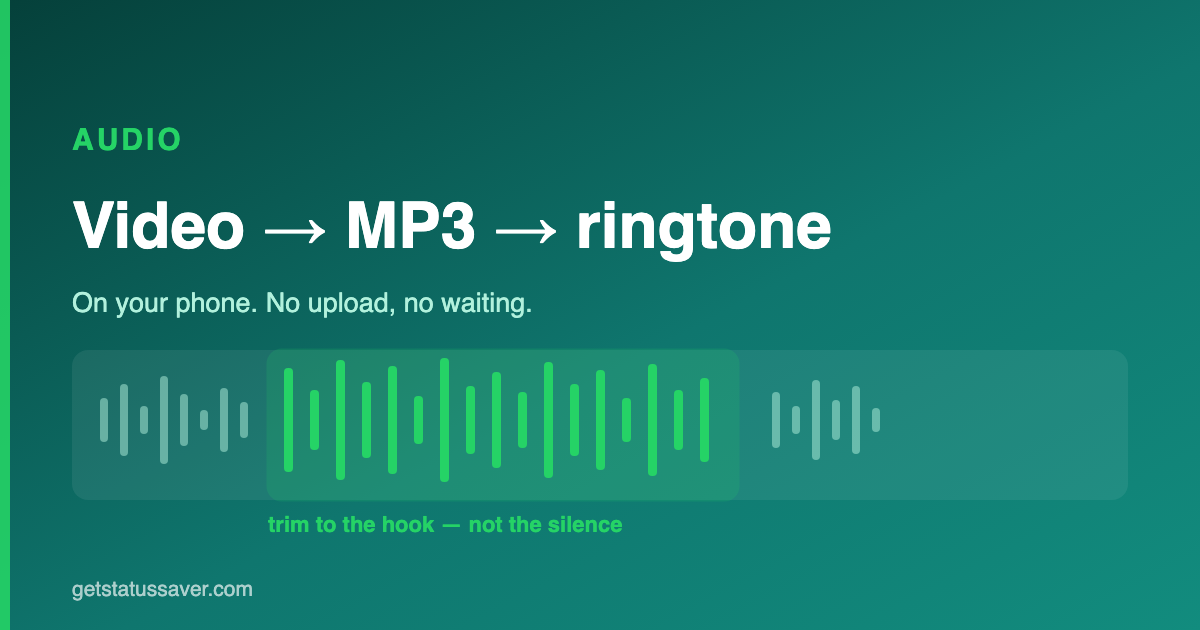
To convert a WhatsApp status video to MP3, save the status, open Status Saver's Convert, pick the video, choose MP3, trim to the part you want, and save — the audio file is written to your phone with no upload. From there you can set it as your ringtone in one tap.
Why not just use an online converter
The usual answer is a "video to MP3" website. They work, and the trade is worth understanding: you upload your file to a stranger's server, it is processed there, and you download the result. For a song clip that may not bother you. For anything personal — a voice message, a video of your family — you have handed a copy to a company you know nothing about, under a privacy policy you did not read.
There is also the practical cost: a large video has to upload over your connection before anything happens, which on mobile data is slow and expensive.
Doing it on the phone avoids both. The file never leaves the device, and there is no upload to wait for.
Extracting the audio
In Status Saver, open a saved video and choose to convert it. You pick the format and the app writes the audio file to your phone.
Three formats, and the choice is simpler than it looks:
- MP3 — plays on everything. Pick this unless you have a reason not to.
- M4A — better quality at the same file size; the format Apple uses. Good for music you will keep.
- AAC — the raw codec, useful when another app expects it specifically.
If you are not sure, MP3 is right.
Trimming to the part you want
Usually you want fifteen seconds, not the whole three minutes. Trim before you export — set the start and end so the clip begins where the good part begins.
This matters more than it sounds for a ringtone. A ringtone that opens with two seconds of silence just sounds like a missed call, because the phone stops ringing before the part you chose ever plays. Cut straight to the hook.
Setting it as a ringtone
Once trimmed, set it directly as your ringtone from the app — no need to move files into a special folder or dig through system settings.
Assigning it to one contact is a per-contact setting in your phone's own Contacts app: open the contact, edit, and choose the ringtone you just made. Android keeps that setting, not the app that made the file.
What stays on your phone
All of it. The conversion, the trim and the export happen on the device, and no audio is uploaded. The app does use the internet — for ads, and for crash and usage reporting — and the Privacy Policy lists exactly what those receive. Your media is not part of it.
Frequently asked questions
Which format should I pick — MP3, M4A or AAC?
Do I need to upload the video to a website?
Can I convert a video that isn't a status?
New guides as they land
Fixes for missing statuses, WhatsApp Web tips and saving how-tos — no spam, just the guide.